OUR BLOG Ideas, Insights & Branding Inspiration
Discover ideas, practical advice and behind-the-scenes insight on branded merchandise, product design and web design for UK businesses.

Discover ideas, practical advice and behind-the-scenes insight on branded merchandise, product design and web design for UK businesses.
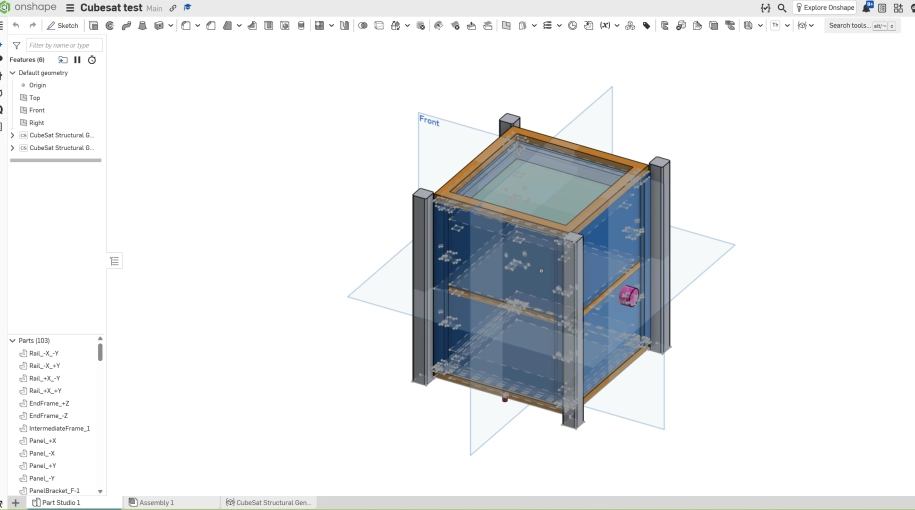
Onshape has been expanding its use of artificial intelligence across its cloud-native CAD and PDM platform, and its latest Onshape AI CAD capability to catch my attention is Text-to-Code-to-CAD, which the company describes as turning natural language into custom CAD functionality and workflows. Instead of simply generating geometry from a text prompt, the system combines AI with Onshape's own FeatureScript language to produce something more useful: editable, parametric CAD tools.
I spent time testing this workflow myself, focusing on real engineering applications rather than basic shapes. The idea is straightforward. You describe the CAD function you want, the AI generates FeatureScript code, Onshape compiles it, and the result appears in the modelling environment as a reusable parametric feature. This article covers how I tested it, what worked, and where it still needs care.
What Is Onshape AI CAD?
Before explaining the test, it helps to understand the pieces involved. Onshape's AI effort includes AI Advisor, a tool that answers questions about the CAD and PDM platform using natural language, grounded in Onshape's own documentation. There are also AI-powered additions across the CAD workflow, including FeatureScript autocomplete, which helps users write custom code more quickly. Third-party assistants such as Adam and CADAgentPRO have also appeared, working inside Onshape through chat interfaces.
The capability I tested is part of Onshape Labs and is described as Text-to-Code-to-CAD. In simple terms, it takes a natural-language prompt and turns it into FeatureScript, the programming language built into Onshape for creating custom features. If you have never used FeatureScript, you can think of it as a way to define design logic that Onshape can apply again and again. Instead of modelling one part, you create a tool that can generate many variations.
Behind the scenes, the AI connects to FeatureScript through a dedicated MCP server, a connection layer that lets it read the model context, generate code, and refine that code in response to follow-up prompts. This is what separates the workflow from a typical text-to-3D generator. The output is not a mesh or a fixed shape. It is structured, parametric CAD code that you can open, edit, and reuse.
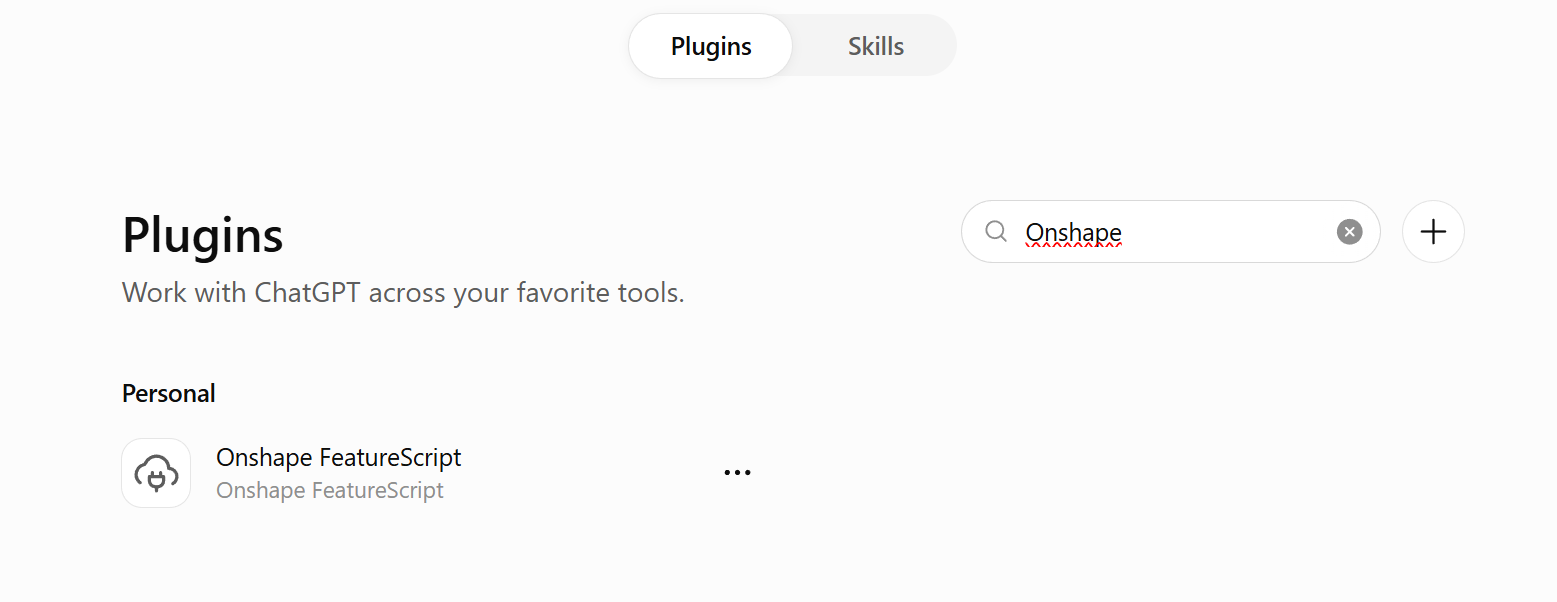
How can you try Onshape's AI CAD workflow yourself?To connect ChatGPT to Onshape, first subscribe to the FeatureScript MCP Server through Onshape Labs/App Store and connect the MCP endpoint (https://fs-mcp.labs.onshape.app/mcp) to a compatible AI client, such as ChatGPT or Claude. Once connected and authorised, you can access the Onshape AI CAD integration from the plugins menu in ChatGPT and provide the URL of the Onshape document you want to use for testing.
It is generally best to create a new document specifically for the FeatureScript you are developing and give it a clear, descriptive name. You can then add the plugin in your chat, describe the custom feature you want to create, and the MCP connection allows the AI to generate FeatureScript, add it to the selected Onshape document, compile and test it, identify errors, and refine the code through further prompts.
One word of warning: this process can use a significant amount of your Onshape API allowance, particularly during repeated testing and debugging, so it is worth minimizing unnecessary calls where possible.
How I Tested ItThe basic workflow is simple. I started with a text prompt describing the geometry I wanted. The AI produced FeatureScript code. Onshape then compiled that code, and the new feature appeared in the feature list, ready to be used in a part studio. When the result was not quite right, I refined the prompt and let the AI update the code rather than starting from scratch.
I deliberately avoided simple shapes such as boxes or cylinders. Those are useful for checking that the pipeline works, but they do not tell you whether the system is useful for real engineering. Instead, I tested two more demanding cases: a configurable CubeSat mechanical structure and a parametric aircraft and multirotor geometry generator.
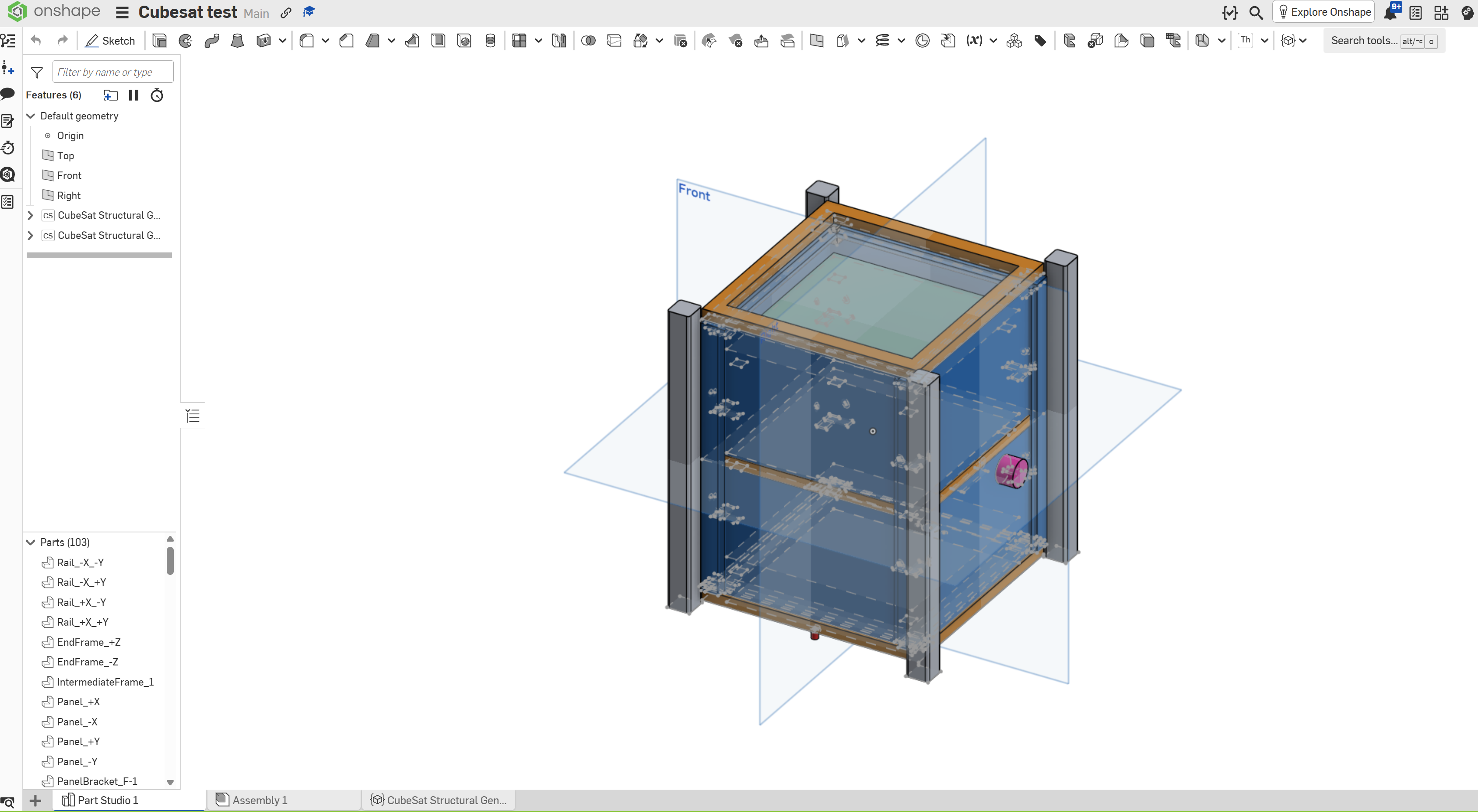
My first test was a configurable CubeSat mechanical structure. This is a good case because CubeSats have well-defined conventions: structural frames, rails, panels, and mounting features that must fit together in a consistent way. I described the requirements in natural language, including adjustable sizes and the need for mounting holes and panel geometry.
The AI generated FeatureScript that created a parametric CubeSat generator. I could adjust the overall size of the structure, and the frames, rails, panels, and mounting features updated accordingly. The important point is not that the model looked correct on screen. It is that the system created a reusable parametric tool rather than one fixed model. Changes to the inputs propagated through the whole structure, which is the essence of design intent in parametric CAD.
This is where the approach becomes interesting for engineering automation. Rather than asking for a single model, you are asking for a tool. Once that tool exists, it can be reused across projects, and the parameters can be controlled manually or tied to other design data.
For an application such as the cubesat, it's such a standardised and modular system in aerospace that further refinement of this kind of FeatureScript AI tool could have a very big impact on cubesat development in the future.
Example: Parametric Aircraft and VTOL GeometryI then tested the same approach on a more open-ended problem: configurable aircraft and multirotor geometry. The aim was to create a generator where I could change fuselage size, wing dimensions, and motor placement without rebuilding the model from scratch.
The workflow handled this surprisingly well. I described the components I wanted, and the AI produced FeatureScript that exposed them as editable parameters. Motor placement, for example, could be adjusted by changing a value rather than remodelling each mount. The result was a configurable geometry tool that could be used to explore different design configurations quickly.
This capability suits early concept work, where frequent geometry changes make static models a bottleneck. Describing a parametric generator in plain language and seeing it as an Onshape feature saves time, though the final revision wasn't ideal for further refinement with the Onshape AI CAD workflow.
What Worked WellSeveral things stood out during testing.
Fast FeatureScript development. Writing the same code by hand would have taken considerably longer, especially for the CubeSat generator with its many interdependent parts.
Lower programming barrier. Engineers who are not experienced programmers can describe what they want and get back structured FeatureScript they can review and modify.
Natural-language iteration. Asking the AI to change a parameter or add a feature led to updated code quickly, without needing to trace through the entire script.
Reusable output. The system produces parametric features, not throwaway geometry. That is the key difference from a simple text-to-3D generator.
For someone already comfortable with Onshape but less familiar with coding, this feels like a genuine productivity gain with Onshape AI CAD. The AI handles the syntax and structure while the engineer focuses on the design intent.
It would be misleading to present this as a finished, hands-off system. I hit several limitations during my testing.
Incorrect or inefficient code. The AI sometimes produced FeatureScript that compiled but was not the best approach for the problem. Reviewing the code is still necessary.
Compilation failures. Some prompts produced code that failed to compile on the first attempt. Refining the prompt usually helped, but not always immediately.
Geometry failures. Unusual combinations of parameters could cause the geometry to fail, even when the code itself compiled correctly.
Engineering responsibility. The AI does not check dimensions against standards, perform calculations, or validate the design. A model that compiles successfully is not the same as an engineering-correct model.
These are not reasons to dismiss the Onshape AI CAD tool, but they are reasons to treat it as an assistant rather than an authority. The output needs the same level of checking and rework you would give to any hand-written FeatureScript.
Why This Could Matter for CADThe broader significance goes beyond Onshape. Text-to-Code-to-CAD points toward a future where engineers can create their own specialised CAD tools without first becoming expert programmers. Company design rules, standard repetitive geometry, and routine configurations could be captured as parametric tools and described in plain language.
For businesses, this has practical implications for Onshape AI CAD adoption. Design automation often fails because the cost of building custom tools outweighs the benefit. If AI reduces that cost, more companies could justify investing in CAD automation. It also lowers the learning curve for new users who want to extend Onshape beyond its built-in features.
None of this removes the need for engineering judgement. Someone still has to define the design intent, check the results, and make sure the output meets real-world requirements. But the ability to describe a CAD tool and have Onshape AI CAD help create it could change how engineers approach customisation and automation in the future.
AI is not replacing the engineer in Onshape. What impressed me most is that the Onshape AI CAD workflow lets you describe the tool you need and have AI help you build it. The result is a parametric feature with real design intent, not just a picture of a part.
For parametric CAD and engineering automation, that is a meaningful development. It does not remove the need for careful checking, but it does remove a significant barrier between an idea and a working CAD tool. If you work with Onshape and have avoided FeatureScript because of the programming overhead, this Onshape AI CAD workflow is worth testing for yourself. It still has a long way to go before it can be fully integrated into the design-to-manufacture pipeline, but it has made meaningful steps to give us a clearer picture of how AI will affect engineering in the future.
Frequently Asked QuestionsText-to-Code-to-CAD is a capability in Onshape Labs that combines natural language with FeatureScript, and it forms the basis of the Onshape AI CAD experience. You describe the CAD functionality you want, and the AI generates FeatureScript code that Onshape compiles into a parametric feature. The emphasis is on creating custom CAD tools and workflows rather than static geometry, so the output remains editable and reusable but not always reliable.
Do I need to know FeatureScript to use Onshape's AI tools?No. The point of the workflow is to lower the programming barrier. You can describe what you want in natural language and the AI produces the FeatureScript, which is the heart of the Onshape AI CAD experience. That said, some familiarity with how parametric features work will help you review the generated code and understand what to check before relying on it in a production design.
Can Onshape AI replace a CAD engineer?The AI can generate FeatureScript and assist with workflows, but it does not validate engineering standards, perform calculations, or guarantee that a design is correct. Onshape's own AI tools are positioned as assistance, and their output still needs professional judgement and checking before use.
What other AI features does Onshape offer?Onshape has introduced AI Advisor, which answers questions about the CAD and PDM platform using natural language, and has been adding AI across the CAD and PDM workflow, including FeatureScript autocomplete.
Copyright © 2026 Logical Branding. All rights reserved.
